How to Fix a Slow Laptop: Complete Step-by-Step Guide (2026)
A slow laptop can be frustrating—especially when you're trying to study, work, or watch something important. Over time, even the best laptops start lagging due to software clutter, outdated hardware, or poor optimization.
👉 The good news? You don't always need a new laptop—you just need to fix what's slowing it down. In this complete guide, we'll show you proven methods to speed up your laptop and improve performance in 2026.
Why Do Laptops Become Slow?
Before fixing the issue, it's important to understand the causes: Too many background apps, low storage space, outdated software, virus or malware, low RAM, old hardware (HDD instead of SSD).
1. Restart Your Laptop (Simple but Effective)
Many users ignore this basic step. 👉 Restarting: clears temporary memory, stops background processes, refreshes system performance.
2. Disable Startup Programs
Too many apps starting automatically can slow your laptop. How to fix: Open Task Manager (Ctrl + Shift + Esc), go to Startup tab, disable unnecessary apps. 👉 Result: Faster boot time.
3. Free Up Storage Space
Low storage = slow performance. What to do: Delete unused files, remove old apps, empty recycle bin, use Disk Cleanup. 👉 Keep at least 20–30% storage free.
4. Upgrade to SSD (Game Changer)
If your laptop still uses HDD: 👉 Switch to SSD. Benefits: Faster boot time, faster app loading, overall speed boost. 👉 This is the #1 upgrade for performance.
5. Increase RAM
Low RAM causes lag during multitasking. Recommendation: Minimum: 8GB, Ideal: 16GB. 👉 Helps with: gaming, browsing, editing.
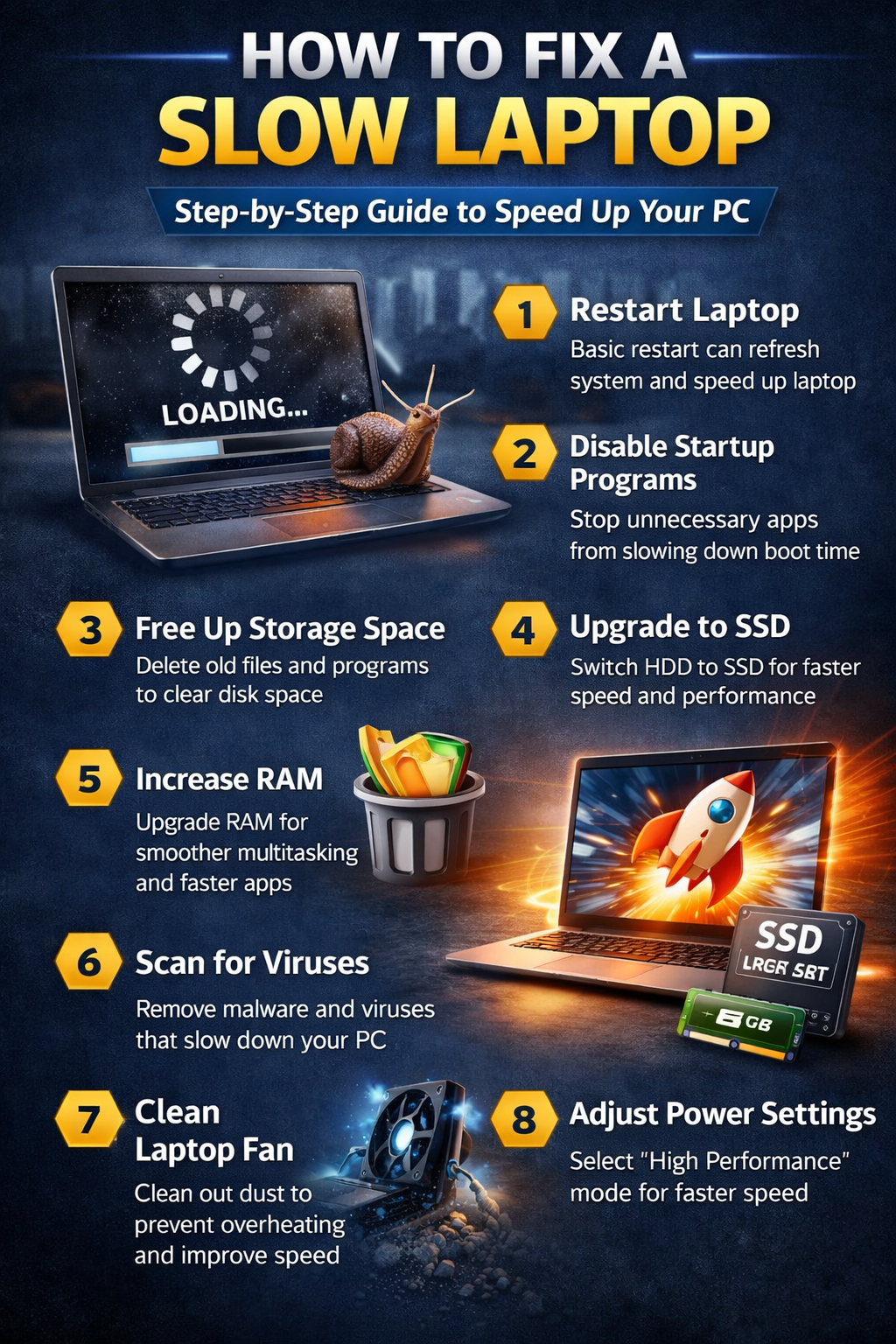
Performance Optimization Infographic
6. Update Your Software
Outdated software can slow your system. Update: Windows / macOS, drivers, apps. 👉 Updates fix bugs and improve speed.
7. Scan for Viruses & Malware
Malware can slow your laptop drastically. Use: Windows Defender, antivirus software. 👉 Run full system scan regularly.
8. Reduce Background Apps
Too many running apps consume RAM and CPU. Fix: Close unused apps, use Task Manager to check usage.
9. Adjust Power Settings
Performance mode can boost speed. Steps: Go to Power Settings, select High Performance mode.
10. Clean Your Laptop (Physical Cleaning)
Dust can cause overheating → slow performance. Do: Clean vents, use cooling pad. 👉 Better cooling = better speed.
11. Disable Visual Effects
Fancy animations can slow older laptops. Steps: Search Performance Options, select Adjust for best performance.
12. Reset or Reinstall Windows
If nothing works: 👉 Do a fresh install. Benefits: Removes junk, fixes deep issues, restores speed.
Quick Fix Checklist
- ✔ Restart laptop
- ✔ Disable startup apps
- ✔ Free storage
- ✔ Scan for viruses
- ✔ Update system
When Should You Upgrade Instead?
Sometimes fixing isn't enough. 👉 Consider upgrade if: laptop is 5+ years old, very low RAM (4GB or less), old processor.
Best Performance Upgrades (2026)
| Upgrade | Impact |
|---|---|
| SSD | ⭐⭐⭐⭐⭐ |
| RAM | ⭐⭐⭐⭐ |
| Cleaning | ⭐⭐⭐ |
Common Mistakes to Avoid
- ❌ Installing too many apps
- ❌ Ignoring updates
- ❌ Using pirated software
- ❌ Running heavy apps on low-end laptops
Expert Tip
👉 Combine these 3 for best results: SSD upgrade, RAM upgrade, clean startup apps.
Final Verdict
👉 The fastest way to fix a slow laptop: Upgrade to SSD, increase RAM, remove unnecessary apps.
Conclusion
A slow laptop doesn't mean it's useless. With the right fixes, you can significantly improve performance and extend its life. 👉 You don't need a new laptop—you need smart optimization.