How to Clean Laptop Screen Safely Without Damage (2026 Guide)
Keeping your laptop screen clean is essential for a clear viewing experience. Dust, fingerprints, and smudges can reduce visibility and make your screen look dull.
However, cleaning a laptop screen incorrectly can damage the display, especially modern screens like LED, LCD, or OLED panels. In this guide, you will learn how to clean a laptop screen safely, step-by-step, using the right tools and methods.
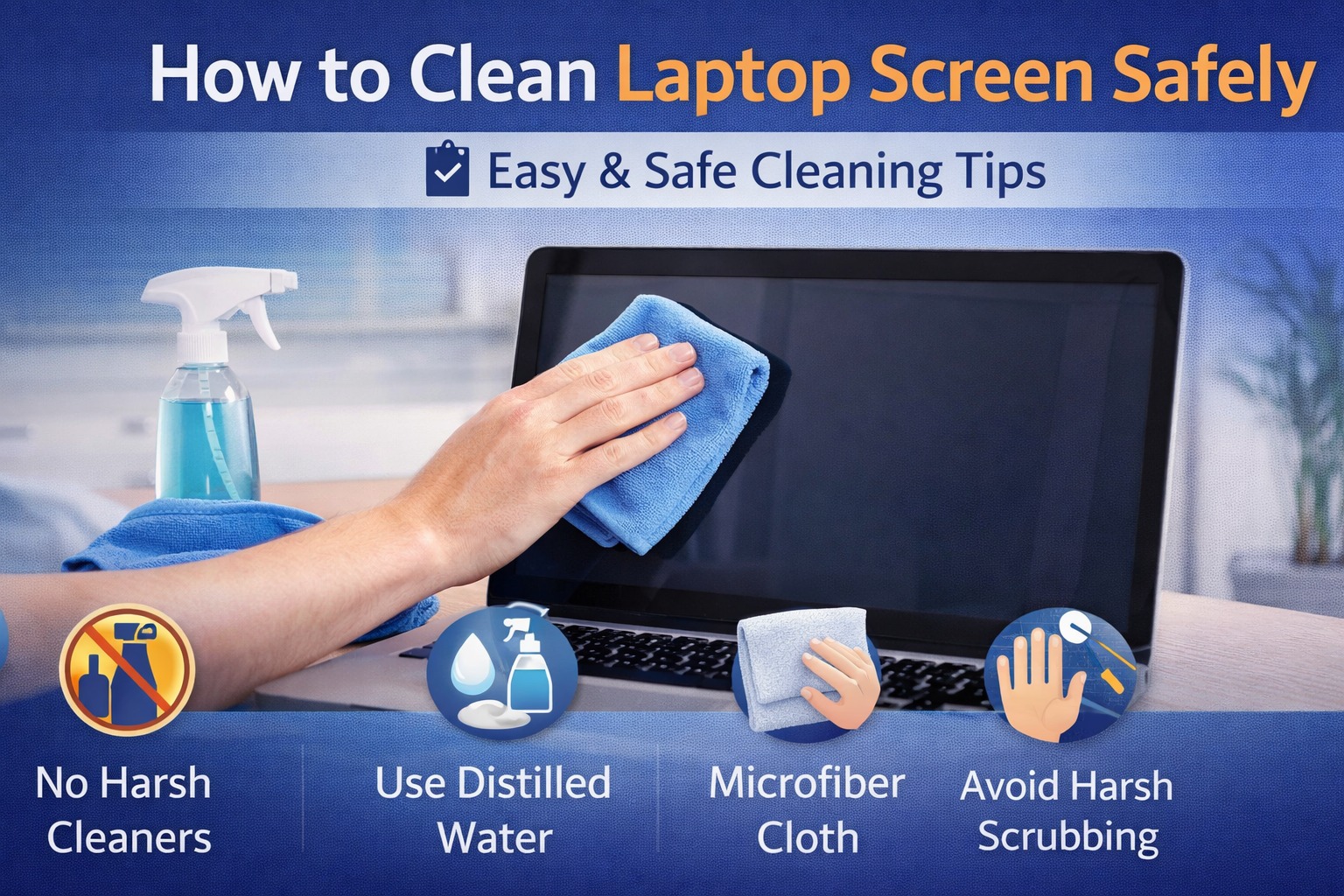
🧼 Why Cleaning Your Laptop Screen Is Important
A dirty screen not only looks bad but can also affect your work and eye comfort. Benefits: Better visibility and clarity, reduced eye strain, improved device hygiene, longer screen lifespan. Regular cleaning helps maintain your laptop's performance and appearance. For official manufacturer advice, you can refer to HP's detailed cleaning guide which covers specific do's and don'ts.
🧰 Things You Need to Clean a Laptop Screen
Before you start, gather the right materials.
- Microfiber cloth (very important)
- Distilled water
- Screen cleaning solution (optional)
- Spray bottle (optional)
👉 Avoid using rough cloths or paper towels. Many tech experts also recommend checking Dell's official support page for additional insights on screen-safe materials.
What NOT to Use on Laptop Screens
Using the wrong materials can damage your screen permanently. Avoid These: alcohol-based cleaners, glass cleaners (like window cleaner), paper towels, rough cloth, excess water. 👉 These can scratch the screen or damage the coating. Lenovo's FAQ section reinforces why harsh chemicals should never be used on modern displays.
📋 Step-by-Step Guide to Clean Laptop Screen
Step 1: Turn Off Your Laptop
Always turn off and unplug your laptop before cleaning. 👉 This prevents electrical damage and makes dirt easier to see.
Step 2: Use a Dry Microfiber Cloth
Gently wipe the screen using a soft microfiber cloth. Move in circular motions, do not apply pressure. 👉 This removes dust and light smudges. For visual demonstrations, you might find this wikiHow tutorial helpful with step-by-step imagery.
Step 3: Use Slightly Damp Cloth (If Needed)
If stains remain: Lightly dampen the microfiber cloth with distilled water, gently wipe the screen. 👉 Never spray water directly on the screen.
Step 4: Dry the Screen
Use a dry part of the cloth to remove any moisture.
Step 5: Let It Air Dry
Wait a few minutes before turning the laptop back on.
✨ Best Way to Clean Stubborn Stains
For tough stains like fingerprints or oil: use a screen-safe cleaning solution, apply it to the cloth (not directly on screen), gently clean the affected area. Reliable sources like How-To Geek emphasize that using minimal liquid is key to preventing internal damage.
⏰ How Often Should You Clean Your Laptop Screen?
- Light cleaning → 2–3 times per week
- Deep cleaning → once every 1–2 weeks
👉 Frequency depends on usage.
Common Mistakes to Avoid
- ❌ Pressing Too Hard – can damage pixels
- ❌ Using Too Much Liquid – can seep into internal components
- ❌ Using Household Cleaners – can remove screen coating
- ❌ Cleaning While Laptop Is On – risk of damage
💡 Cleaning Different Types of Laptop Screens
- LCD / LED Screens: Use microfiber cloth, avoid harsh chemicals.
- Matte Screens: Clean gently to avoid scratches.
- Glossy Screens: Show more fingerprints, clean more frequently.
Pro Tips for Maintaining a Clean Screen
- Wash your hands before using laptop
- Avoid touching the screen
- Use screen protectors
- Keep your workspace clean
For more background on screen care best practices, you can also visit our About page to learn about our commitment to tech maintenance education.
❓ Frequently Asked Questions
✅ Conclusion
Cleaning your laptop screen is simple if done correctly. Always use: microfiber cloth, minimal liquid, gentle pressure. Avoid harsh chemicals and rough materials. 👉 By following these steps, you can keep your laptop screen clean, clear, and damage‑free. For full transparency and site policies, feel free to review our Terms of Service and Disclaimer — we are dedicated to providing trustworthy information.
Additionally, your privacy matters: read our Privacy Policy to understand how we protect your data while you explore screen care and other tech guides. We regularly update our content to reflect the latest safety standards.